Quick start
Watch with Us on Plex
Alan's family Plex server has Movies, TV Shows, and Music.
To see them you have to "pin" the libraries — and the Plex app
alone can't do it. You need a web browser first.
Step by step
1
Open a web browser — not the app
On whatever device you're setting up, open Chrome, Safari, or any browser
and go to app.plex.tv. Log in with YOUR Plex account.
Important
You cannot pin libraries from the Plex app alone. You must use the website
at app.plex.tv at least once to get them to appear.
2
Click "More ›" in the left sidebar
In the left sidebar you'll see Home, Watchlist, Live TV, Movies & Shows,
Rentals, Discover — and at the bottom, "More ›". Click that.
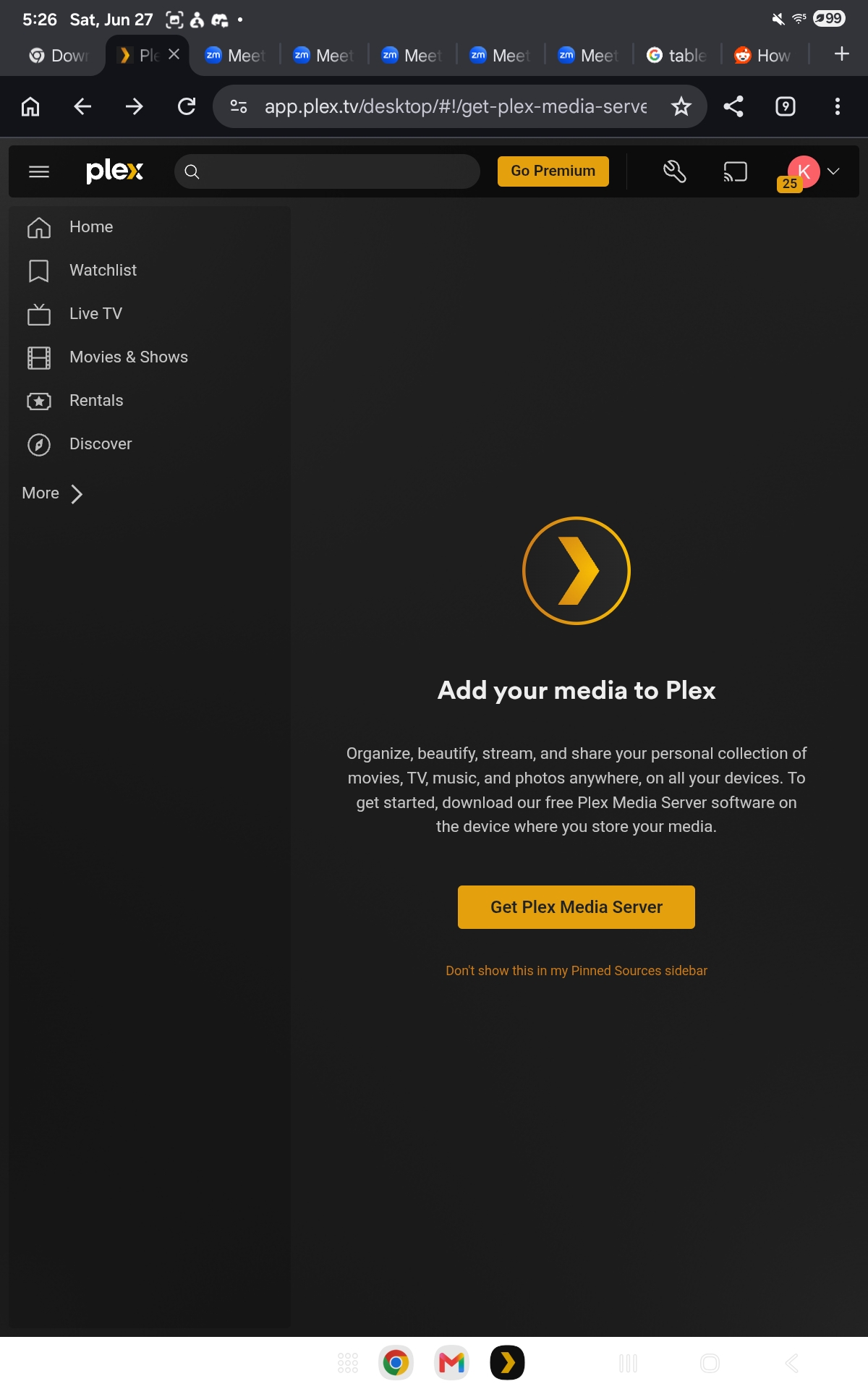
The "More ›" link lives at the bottom of the sidebar
3
Find "Alan Hutchinson / Plex Server" and pin the libraries
After clicking More, you'll see a list of sources. Scroll down until you see
Alan Hutchinson / Plex Server. Under it you'll find
Movies, Music, TV Shows,
and Playlists. Click the pin icon next to each one
to add them to your sidebar.
What it looks like after pinning
Once pinned, the libraries jump to the top of your sidebar under a
"Pinned" section — exactly where you need them.
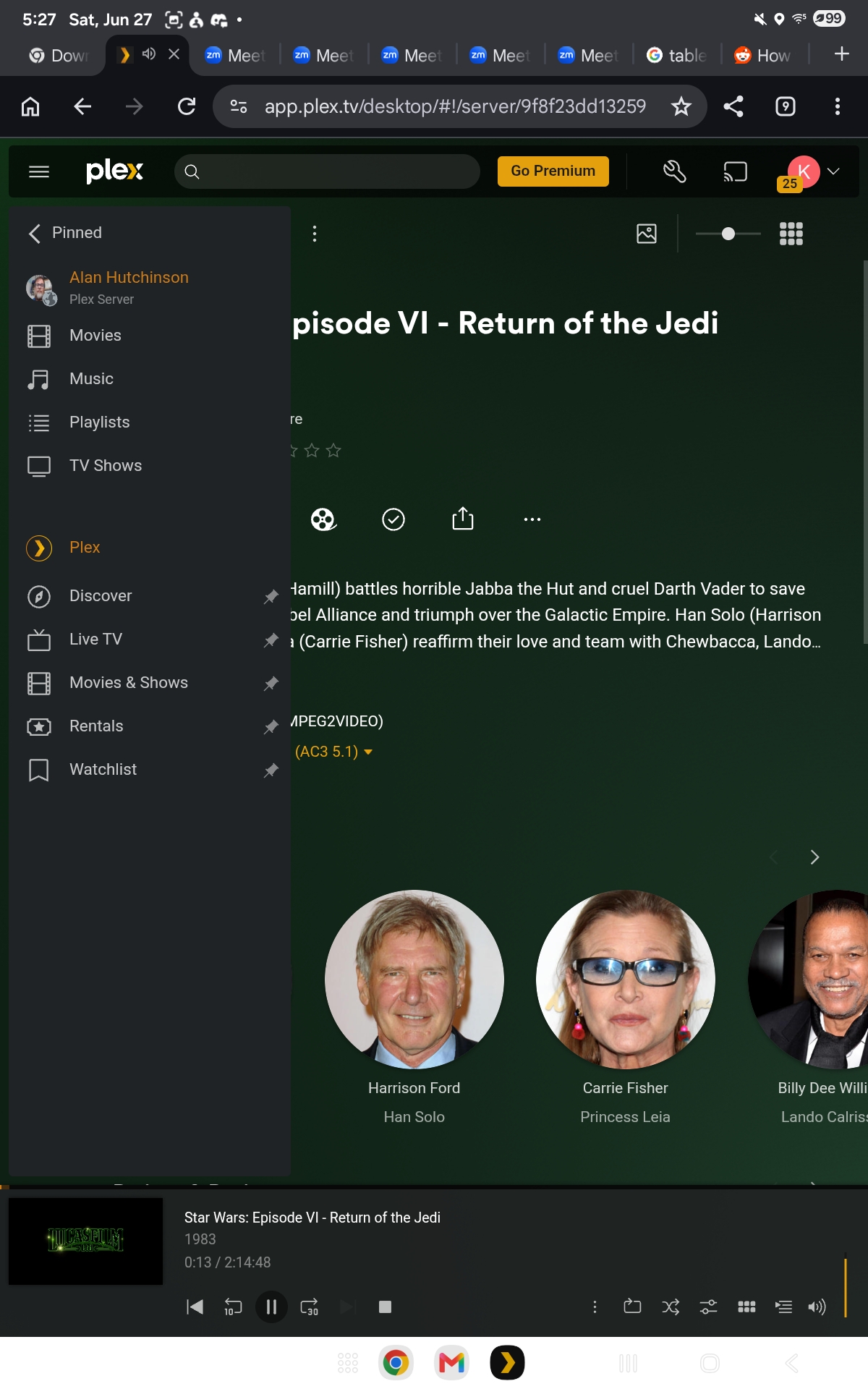
Pinned: Movies, Music, Playlists, TV Shows all visible
4
Open the Plex app — libraries appear in the bottom bar
Now open (or reopen) the Plex app on the device. You should see a
Libraries tab in the bottom navigation bar. Tap it and
the full family collection is there.
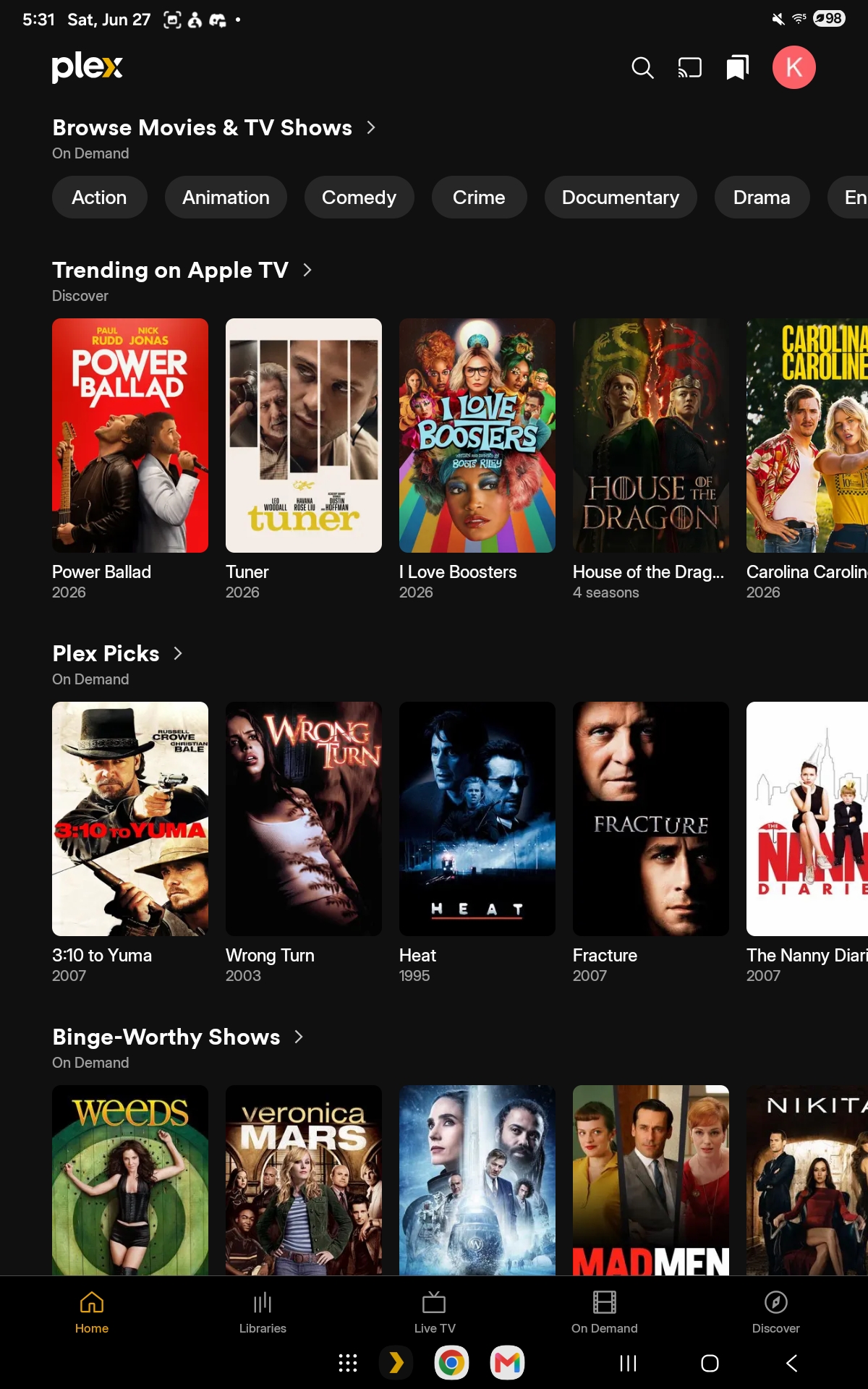
The Libraries tab appears at the bottom once pinned
5
You're in. Enjoy.
The pinning is saved to your Plex account, so you only have to do this
once per account — not once per device. Any other device you log into
with the same account will already have the libraries pinned.
Bonus tip
If the steps above don't show any libraries from Alan, you may not be on
the server yet. Use the
friend invite link
to request access.